Windows IIS and many enterprise applications require PFX (PKCS#12) format for SSL/TLS certificates. Converting from PEM while properly bundling the private key, intermediate certificates, and root CA is critical for successful deployment and avoiding "incomplete chain" errors.
PEM vs PFX: Understanding the Formats
| Aspect | PEM | PFX (PKCS#12) |
|---|---|---|
| Format | Text (Base64) | Binary |
| Contents | Single certificate or key | Bundle (cert + key + chain) |
| Password protection | Private key can be encrypted | Entire bundle encrypted |
| Used on | Linux (Apache, Nginx) | Windows (IIS), Java, Tomcat |
| File extensions | .pem, .crt, .cer, .key | .pfx, .p12 |
What You Need for PEM to PFX Conversion
A complete PFX file requires three components:
1. Your SSL Certificate (cert.pem)
-----BEGIN CERTIFICATE-----
MIIFazCCBFOgAwIBAgISA+... (your domain certificate)
-----END CERTIFICATE-----
2. Private Key (private.key)
-----BEGIN RSA PRIVATE KEY-----
MIIEvQIBADANBgkqhkiG9w0B... (must match the certificate)
-----END RSA PRIVATE KEY-----
⚠️ Critical: Never share your private key. Keep it secure.
3. Certificate Chain (chain.pem or ca-bundle.crt)
-----BEGIN CERTIFICATE-----
(Intermediate CA certificate)
-----END CERTIFICATE-----
-----BEGIN CERTIFICATE-----
(Root CA certificate)
-----END CERTIFICATE-----
Why the chain matters: Browsers and clients need the intermediate certificates to verify your certificate back to a trusted root CA. Missing chain = "untrusted certificate" errors.
Method 1: OpenSSL (Recommended)
Step 1: Install OpenSSL
Windows:
- Download from Shining Light Productions
- Or use Git Bash (includes OpenSSL)
- Or install via Chocolatey:
choco install openssl
macOS:
brew install opensslLinux:
sudo apt-get install openssl  # Debian/Ubuntu
sudo yum install openssl      # CentOS/RHEL
Step 2: Convert PEM to PFX
Basic conversion (with password):
openssl pkcs12 -export -out certificate.pfx -inkey private.key -in cert.pem -certfile chain.pem -passout pass:YourPassword123Parameter explanation:
-export— Create PFX (not read)-out certificate.pfx— Output filename-inkey private.key— Your private key-in cert.pem— Your SSL certificate-certfile chain.pem— Intermediate + root certs-passout pass:YourPassword123— PFX protection password
Interactive Password Prompt
Omit -passout to be prompted securely:
openssl pkcs12 -export -out certificate.pfx -inkey private.key -in cert.pem -certfile chain.pemNo Password (Not Recommended)
For testing only—never deploy without a password:
openssl pkcs12 -export -out certificate.pfx -inkey private.key -in cert.pem -certfile chain.pem -passout pass:Method 2: Online Converter
Use our PEM to PFX Converter for:
- ✅ No OpenSSL installation required
- ✅ Automatic chain bundling
- ✅ Client-side processing (files never uploaded)
- ✅ Password protection
- ✅ Validation and error checking
⚠️ Security note: For production certificates, prefer local OpenSSL or our client-side converter (files stay in your browser).
Importing the PFX to IIS (Windows Server)
Option 1: IIS Manager GUI
- Open IIS Manager (inetmgr)
- Select your server name (not site)
- Double-click "Server Certificates"
- Right sidebar → "Import..."
- Browse to your
.pfxfile - Enter the password
- Click OK
Option 2: PowerShell
# Import PFX to Windows Certificate Store
$password = ConvertTo-SecureString -String "YourPassword123" -Force -AsPlainText
Import-PfxCertificate `
  -FilePath C:\path\to\certificate.pfx `
  -CertStoreLocation Cert:\LocalMachine\My `
  -Password $password `
  -Exportable  # Allows future export if needed
Option 3: Command Line (certutil)
certutil -importpfx -p "YourPassword123" certificate.pfxBinding the Certificate to Your Site
- In IIS Manager, select your website
- Right sidebar → "Bindings..."
- Click "Add..." or edit existing HTTPS binding
- Type: https
- Port: 443
- SSL Certificate: Select your imported certificate
- Click OK
Common Import Errors & Fixes
Error 1: "The specified network password is not correct"
Cause: Wrong PFX password
✅ Fix:
- Verify password (check for typos, case-sensitivity)
- If you forgot the password, recreate the PFX from PEM files
- Test PFX with OpenSSL:
openssl pkcs12 -info -in certificate.pfx
Error 2: "Cannot find the certificate and private key for decryption"
Cause: Private key not included in PFX, or key doesn't match certificate
✅ Fix:
- Verify key matches cert:
openssl rsa -modulus -noout -in private.key | openssl md5 - Compare with cert:
openssl x509 -modulus -noout -in cert.pem | openssl md5 - Hashes must match
Error 3: "Certificate chain incomplete" or "Untrusted certificate"
Cause: Missing intermediate certificates
✅ Fix:
- Download intermediate + root CA certs from your certificate provider
- Combine into
chain.pem(intermediate first, root second) - Recreate PFX with
-certfile chain.pem
Error 4: "Keyset does not exist" (when binding in IIS)
Cause: IIS application pool identity doesn't have permission to read private key
✅ Fix:
- Run
mmc(Microsoft Management Console) - Add Snap-in → Certificates → Computer Account → Local Computer
- Navigate to Personal → Certificates
- Right-click your certificate → All Tasks → Manage Private Keys
- Add "IIS_IUSRS" with Read permission
Verifying the PFX File
Check Contents
openssl pkcs12 -info -in certificate.pfx -nodesExpected output:
- ✅ Your certificate (domain name visible)
- ✅ Private key (
-----BEGIN PRIVATE KEY-----) - ✅ Intermediate certificate(s)
- ✅ Root CA certificate (optional but recommended)
Test with SSL Labs
After deploying to IIS, test at SSL Labs:
- ✅ Should show "Certificate is trusted"
- ✅ "Chain issues: None"
- ✅ Grade A or higher
Security Best Practices
1. Strong Passwords
- Minimum 12 characters
- Include uppercase, lowercase, numbers, special chars
- Store in password manager (1Password, LastPass, or enterprise vault)
2. Secure Storage
- Store PFX files in encrypted volumes (BitLocker, VeraCrypt)
- Never commit to version control (add
*.pfxto.gitignore) - Delete PFX from workstations after importing to server
3. Access Control
- Restrict read access to PFX files (administrators only)
- Use
-Exportableflag in PowerShell import only if you need to backup - Audit certificate access (Windows Event Log ID 4663)
4. Certificate Lifecycle
- Monitor expiration (set reminders 60/30/7 days before)
- Automate renewal with Let's Encrypt or ACME protocol
- Test renewals in staging environment first
Advanced: Extracting Components from PFX
Extract Certificate
openssl pkcs12 -in certificate.pfx -clcerts -nokeys -out cert.pemExtract Private Key
openssl pkcs12 -in certificate.pfx -nocerts -nodes -out private.keyExtract CA Chain
openssl pkcs12 -in certificate.pfx -cacerts -nokeys -out chain.pemUseful when migrating from Windows IIS to Linux Apache/Nginx.
FAQ: PEM to PFX Conversion
Can I create a PFX without a password?
Yes (use -passout pass:), but it's insecure. Passwords protect against unauthorized export and are required by most compliance standards (PCI DSS, SOC 2).
What's the difference between .pfx and .p12?
They're the same format (PKCS#12). .pfx is Windows convention, .p12 is cross-platform. Use .pfx for IIS, .p12 for Java/Tomcat.
Do I need to include the root CA certificate?
Optional but recommended. Most clients have root CAs pre-installed, but including it ensures compatibility with older devices and some mobile browsers.
Can I use a wildcard certificate in PFX format?
Yes. Wildcard certs (*.example.com) work identically in PFX—just follow the same conversion process.
How do I check if my private key is encrypted?
Encrypted keys contain ENCRYPTED in the header: -----BEGIN ENCRYPTED PRIVATE KEY-----. Decrypt with: openssl rsa -in encrypted.key -out decrypted.key
Related Guides
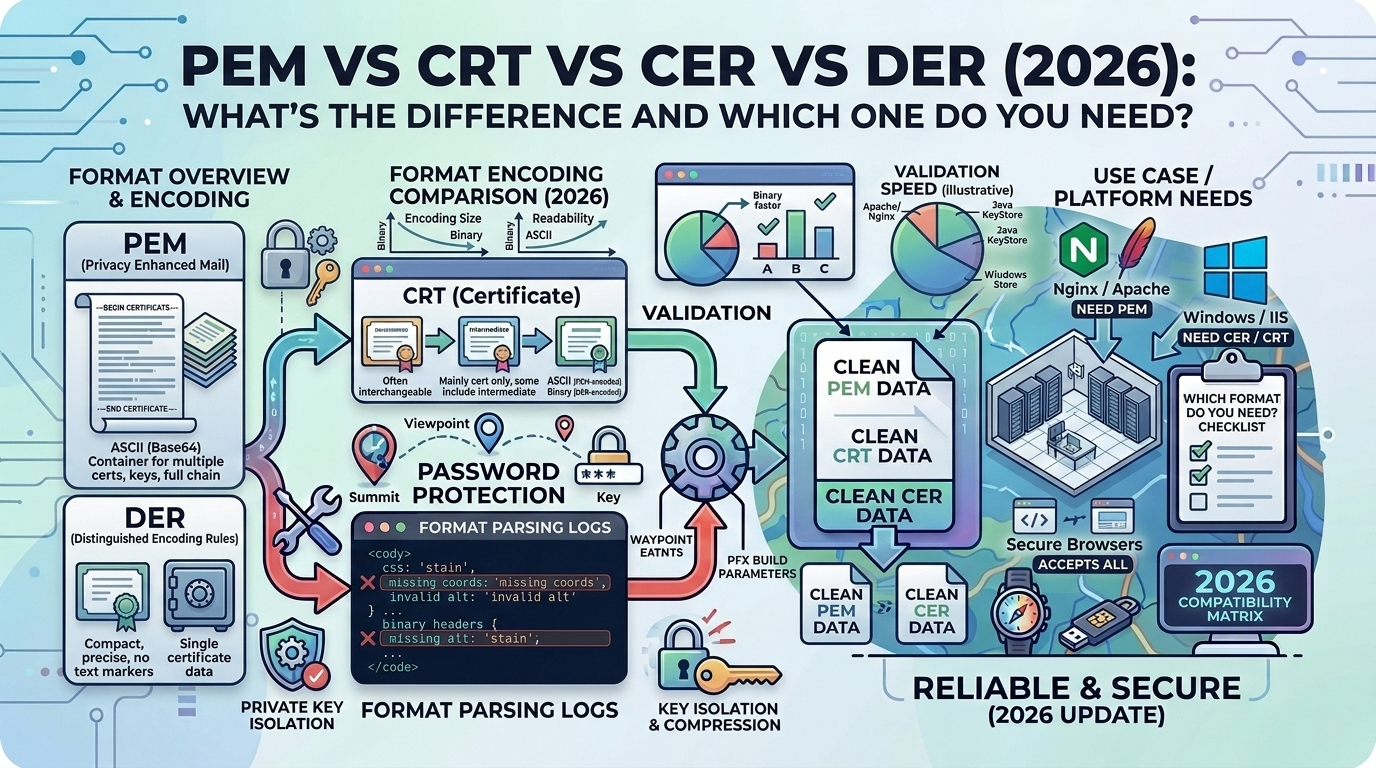
- PEM vs CRT vs CER vs DER — Format comparison
- PFX to PEM — Reverse conversion
- CRT to PEM — Certificate format conversion
Conclusion
Converting PEM to PFX is essential for deploying SSL/TLS certificates on Windows IIS and many enterprise applications. Success requires properly bundling your certificate, private key, and full certificate chain into a password-protected PKCS#12 file. Use OpenSSL for production conversions, test thoroughly with SSL Labs, and follow security best practices for private key protection. Our PEM to PFX Converter handles all conversion complexities automatically, including chain validation, password protection, and compatibility testing, ensuring your certificates deploy correctly the first time.
Related Articles
- PEM vs CRT vs CER vs DER (2026): Certificate Formats Explained - Comprehensive guide to understanding SSL certificate formats
- SVG to Data URI (2026): Encode Web Assets - Another common web file conversion technique
- SQL to JSON (2026): Database to API Format - Transform structured data for modern applications