Q
QuickConvert
Free & Unlimited
100% Free⚡ Lightning Fast🔒 Private

HEIC to JPG

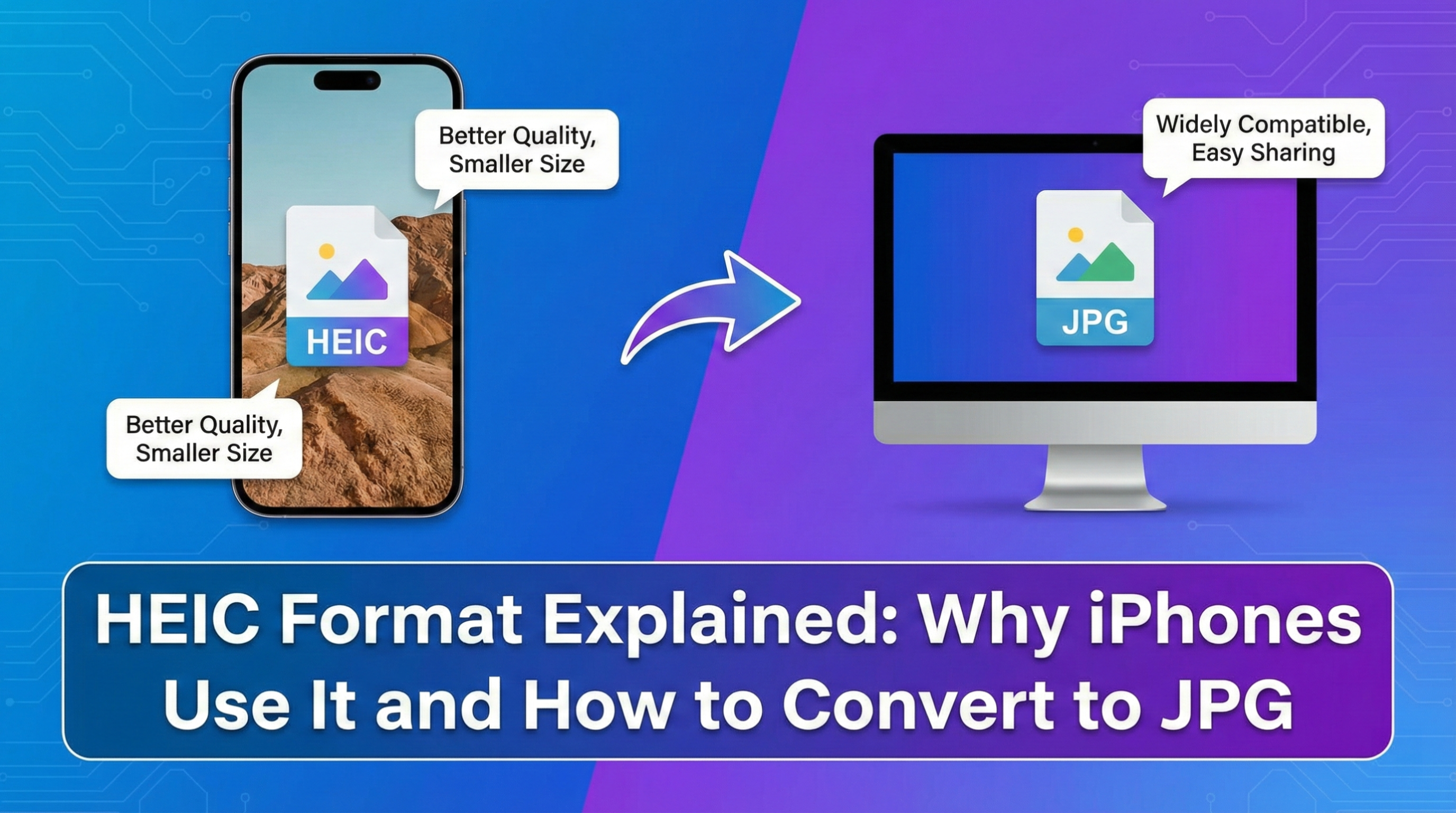
Make your HEIC files compatible with everything. JPG is the most widely supported image format in the world.

🚀No Upload
Instant Results
HD Quality
SSL Encrypted
No Logs Kept
<200ms Response
File Picker Restricted: Only .HEIC or .HEIF files
Convert HEIC

Drag and drop your file here

Only .HEIC or .HEIF files ✓

Features of our JPG Converter

🌍

Universal View

Open your photos on any device or software.

Learn more
🔧

Fix Compatibility

Solve 'cannot open file' errors with HEIC.

Learn more

High Quality

We maintain the visual quality of your original.

Learn more

How to convert HEIC to JPG?

  1. 1
    Select File

    Choose the HEIC file you wish to convert.

  2. 2
    Processing

    Our secure engine converts it to JPG instantly.

  3. 3
    Download

    Save your file. No watermarks, high quality.

Frequently Asked Questions

When should I use HEIC to JPG?
Use HEIC to JPG when your primary goal is cross-device compatibility for iPhone photos. It is the safest path when you need universal support across apps and OS and production-ready output in one pass.
How do I avoid common HEIC to JPG mistakes?
The most frequent issue is color profile differences may affect visual tone. Start from the highest-quality source file, convert once, then run a quick visual and compatibility check before sharing.
Does HEIC to JPG work for team workflows?
Yes. A common workflow is to convert iPhone gallery files for web upload and support tickets. Teams use this to standardize assets so everyone works from the same output format and quality baseline.
Is HEIC to JPG suitable for client delivery and publishing?
Yes, if you complete a final QA pass. review brightness and color after conversion. Also verify final file size against your destination platform limits.
Can I automate HEIC to JPG in a technical pipeline?
Yes. Many developers use HEIC to JPG as a pre-deploy normalization step before upload, indexing, or API ingestion to reduce downstream format errors.
What should I check after HEIC to JPG conversion?
Confirm the file opens in the target app, inspect quality at real display size, and validate metadata or encoding requirements used by your destination system.

Trusted by Millions

15M+
Conversions
4.9⭐
User Rating
50+
Formats
100%
Free
S
★★★★★
Jan 2026

"This is hands down the best file converter I've used. Fast, reliable, and the fact that it works offline is incredible!"

Sarah Johnson

Graphic Designer

M
★★★★★
Dec 2025

"Perfect for optimizing images for my clients' websites. The WebP and AVIF conversions are lightning fast!"

Michael Chen

Web Developer

E
★★★★★
Jan 2026

"Finally, a converter that doesn't add watermarks or require sign-up. This tool saved me hours!"

Emma Williams

Marketing Manager

D
★★★★★
Feb 2026

"The HEIC to JPG conversion is flawless. No quality loss and works instantly. Highly recommended!"

David Kim

Photographer

Why Choose QuickConvert for HEIC Conversion JPG?

🔒 Maximum Privacy & Security

Unlike other converters that upload your files to their servers, QuickConvert processes everything directly in your browser. Your HEIC files never leave your device, ensuring complete privacy and security. Perfect for sensitive documents and confidential files.

⚡ Lightning-Fast Conversion Speed

Convert HEIC to JPG in under 2 seconds! Our optimized engine uses cutting-edge browser technology to deliver instant results. No waiting in queues, no server delays - just pure speed.

💎 Premium Quality Output

We maintain the highest quality standards in every conversion. No compression artifacts, no watermarks, no quality loss. Your JPG files will look exactly as intended, whether you're creating professional documents or preserving precious memories.

🎁 Completely Free Forever

No hidden costs, no subscription plans, no credit card required. QuickConvert is 100% free with unlimited conversions. We believe everyone deserves access to professional-grade file conversion tools without barriers.

About HEIC Conversion JPG

HEIC to JPG conversion is optimized for balanced quality, speed, and broad compatibility. The conversion engine reduces common opening issues while keeping output visually clean and usable. Files are processed quickly in-browser without external upload.

💡 Pro Tip: JPG quality setting of 85-95% offers the best balance between file size and image quality for most photographs.

HEIC to JPG: Practical Developer Notes

HEIC to JPG is most valuable when you need cross-device compatibility for iPhone photos without introducing manual cleanup steps after conversion. In practical delivery pipelines, teams often lose time because one format works in a preview but fails in the final destination tool. This page focuses on universal support across apps and OS, so your output is not just converted, but immediately usable in real workflows. A proven implementation pattern is to convert iPhone gallery files for web upload and support tickets. This keeps handoffs predictable between design, product, QA, and engineering teams. Instead of exporting multiple variants manually, you can normalize files once, then distribute the same final output across your systems. For organizations with mixed operating systems and browser versions, this consistency removes a major source of support tickets and rework. The most common risk in HEIC to JPG projects is color profile differences may affect visual tone. To reduce this, validate source files before conversion, avoid repeated re-encoding cycles, and compare the final result at real target size rather than zoomed previews. After conversion, run a lightweight acceptance check: open the file in the destination app, confirm rendering behavior, and verify file-size limits where needed. For production usage, treat HEIC to JPG as a quality gate. review brightness and color after conversion. When this step is standardized, conversion becomes a dependable part of your release process instead of a last-minute troubleshooting task.

Practical Conversion Guide

HEIC to JPG conversion is tuned for cross-device compatibility for iPhone photos. This guide emphasizes universal support across apps and OS so each output is more reliable and production-ready.

High-Value Use Cases

  • Recommended workflow: convert iPhone gallery files for web upload and support tickets.
  • Use HEIC to JPG as a standardization step before publishing.
  • Ideal for teams that need consistent outputs across multiple devices.

Common Pitfalls

  • Primary risk: color profile differences may affect visual tone.
  • Do not publish without a quick visual quality check.
  • Avoid chaining multiple conversions on the same source asset.

Quality Checklist

  • review brightness and color after conversion.
  • Confirm the converted file opens correctly in the target tool.
  • Check final file size and readability before production release.

🔬 Technical Note 2026 Specs

HEIC uses HEVC video compression, reducing file sizes by 50% vs. JPEG at identical quality. Our converter supports 10-bit depth HEIC (iPhone 12+) and converts to 8-bit sRGB JPEG for universal compatibility.

Browser-Native Processing

Latest from Our Knowledge Base

Expert guides and tutorials on file conversion and optimization

Developer tools

Popular technical converters for APIs, certificates, logs, geodata, and structured data workflows.