Google Earth's KML format is powerful for creating routes, but most GPS devices and fitness apps require GPX. Understanding the differences between tracks, routes, and waypoints is critical for successful conversion without losing elevation data, timestamps, or navigation functionality.
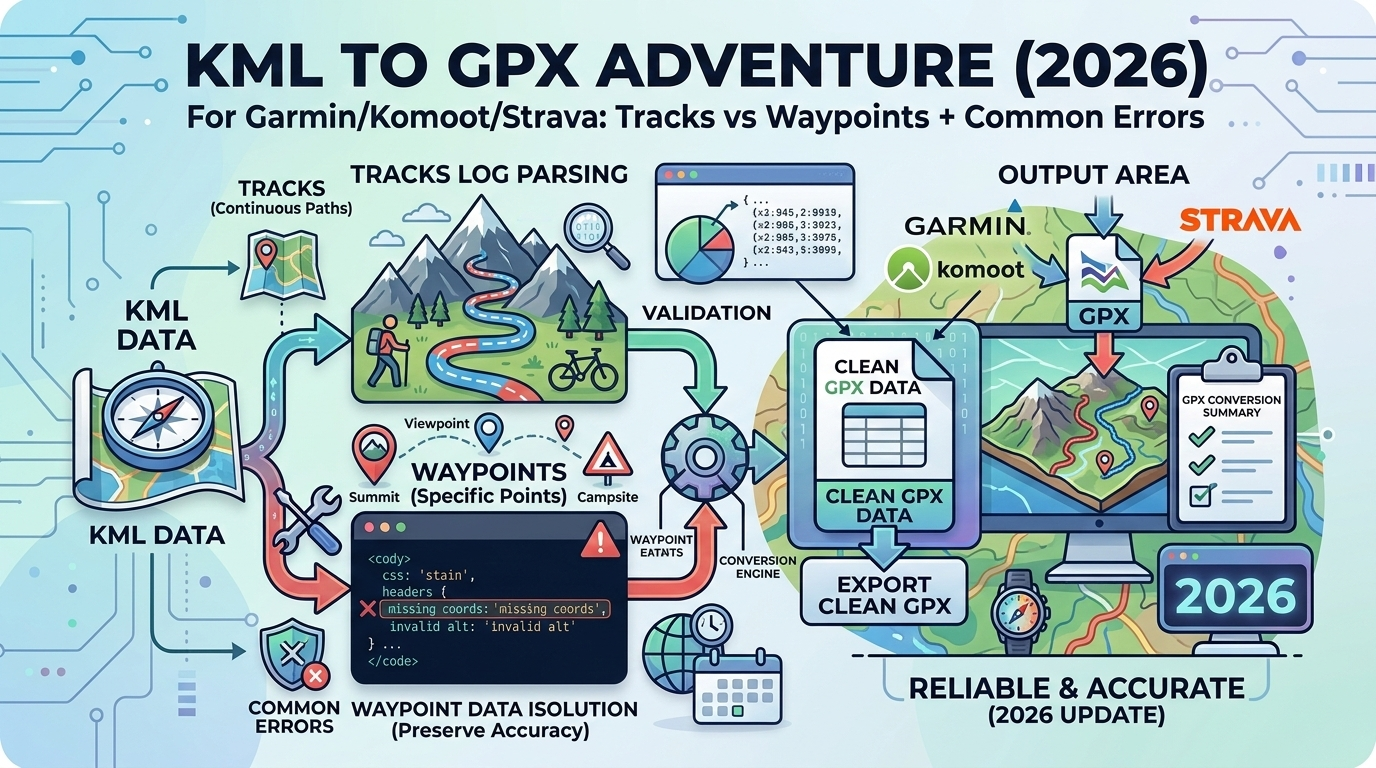
KML vs GPX: Key Differences
| Feature | KML (Google Earth) | GPX (GPS Standard) |
|---|---|---|
| Primary use | Mapping, visualization | Navigation, tracking |
| Styling | Rich (colors, icons, 3D) | Minimal (focus on data) |
| Coordinate order | Longitude, Latitude, Elevation | Latitude, Longitude (+ ele attribute) |
| Device support | Google Earth, some drones | Garmin, Wahoo, Strava, Komoot, AllTrails |
| File size | Larger (styling data) | Smaller (coordinates only) |
Understanding GPX Structure: Tracks, Routes, and Waypoints
GPX supports three data types, each with different purposes:
1. Waypoints (<wpt>)
Single points of interest with coordinates and metadata.
<wpt lat="47.6062" lon="-122.3321">
  <ele>10</ele>
  <name>Pike Place Market</name>
  <desc>Famous public market</desc>
</wpt>
Use for: Parking spots, water sources, campsites, POIs
2. Tracks (<trk>)
Recorded paths with many points (your actual journey).
<trk>
  <name>Morning Run</name>
  <trkseg>
    <trkpt lat="47.6100" lon="-122.3400">
      <ele>50</ele>
      <time>2026-03-05T08:00:00Z</time>
    </trkpt>
    <trkpt lat="47.6105" lon="-122.3410">
      <ele>52</ele>
      <time>2026-03-05T08:01:30Z</time>
    </trkpt>
  </trkseg>
</trk>
Use for: Recorded activities (Strava uploads), past hikes
3. Routes (<rte>)
Planned paths with waypoints (navigation instructions).
<rte>
  <name>Commute to Work</name>
  <rtept lat="47.6062" lon="-122.3321">
    <name>Start - Home</name>
  </rtept>
  <rtept lat="47.6205" lon="-122.3493">
    <name>End - Office</name>
  </rtept>
</rte>
Use for: Turn-by-turn navigation, planned routes
| Type | Points | Timestamps | Best For |
|---|---|---|---|
| Waypoint | Single | Optional | POIs, markers |
| Track | Many (dense) | Usually included | Past activities (Strava) |
| Route | Moderate (key points) | Rarely included | Navigation (Garmin, Komoot) |
KML to GPX: What Gets Converted
KML Placemarks → GPX Waypoints
KML:
<Placemark>
  <name>Summit</name>
  <Point><coordinates>-122.3321,47.6062,1500</coordinates></Point>
</Placemark>

GPX:
<wpt lat="47.6062" lon="-122.3321">
  <ele>1500</ele>
  <name>Summit</name>
</wpt>
KML LineString → GPX Track
KML:
<LineString>
  <coordinates>
    -122.3321,47.6062,100
    -122.3330,47.6070,105
  </coordinates>
</LineString>

GPX:
<trk>
  <trkseg>
    <trkpt lat="47.6062" lon="-122.3321"><ele>100</ele></trkpt>
    <trkpt lat="47.6070" lon="-122.3330"><ele>105</ele></trkpt>
  </trkseg>
</trk>
Device-Specific Requirements
Garmin GPS Devices
Supported: Tracks, routes, waypoints
Best practices:
- Routes: Use for turn-by-turn navigation (Garmin recalculates)
- Tracks: Use for breadcrumb following (exact path)
- Max points: 10,000 per track (older models have lower limits)
- Elevation: Always include
<ele>for accurate climb/descent
How to load on Garmin:
- Connect device via USB
- Copy GPX to
Garmin/GPX/folder - Safely eject
- On device: Track Manager → Import
Komoot
Import support: Tracks or routes
Komoot specifics:
- Snaps to roads/trails: Your GPX is a reference, Komoot recalculates
- Surface type matters: Tag roads vs trails for bike routing
- Elevation auto-corrected: Komoot uses its own elevation database
How to import:
- Open Komoot app or website
- Plan → Import GPX
- Choose "Keep original" vs "Let Komoot optimize"
Strava
Import support: Tracks only (with timestamps)
Strava requirements:
- Timestamps required: Strava needs
<time>for each point - Activity type: Detects based on speed (can override)
- Elevation corrected: Strava auto-fixes elevation using its database
How to upload:
- Strava.com → + icon → Upload Activity
- Choose GPX file
- Set activity type if misdetected
⚠️ Important: If your KML doesn't have timestamps, Strava won't accept it. Use our converter to generate synthetic timestamps based on reasonable speed.
Common Conversion Errors & Fixes
Error 1: Coordinate Swap (Lat/Lon Reversed)
Symptom: GPX shows your route in the middle of the ocean or wrong continent.
Cause: KML uses (lon,lat,ele), GPX uses lat/lon attributes in reverse order.
✅ Fix: Ensure converter swaps coordinates correctly:
KML: -122.3321,47.6062  (lon, lat)
GPX: lat="47.6062" lon="-122.3321"
Error 2: Missing Elevation Data
Symptom: Garmin/Komoot shows route but no climb/descent stats.
Cause: KML has 2D coordinates only:
<coordinates>-122.3321,47.6062</coordinates> ← No elevation!✅ Fix options:
- Option 1: Re-export from Google Earth with "Absolute" altitude mode
- Option 2: Use elevation lookup service (SRTM, ASTER) to add elevations
- Option 3: Let Garmin/Komoot auto-correct (less accurate)
Error 3: Too Many Points (File Too Large)
Symptom: Garmin rejects GPX or device freezes.
Cause: KML with thousands of points (e.g., detailed building outlines).
✅ Fix: Simplify the track:
- Reduce point density: Keep every Nth point (e.g., every 5th)
- Douglas-Peucker algorithm: Smart simplification preserving shape
- Target: <2,000 points for older Garmin devices, <10,000 for modern ones
Error 4: Folders/Nested Structure Lost
Symptom: KML had organized folders, GPX is a flat list.
Cause: GPX doesn't support nested folders like KML.
✅ Fix: Use track/waypoint names to preserve organization:
KML folder: "Day 1 / Morning Hike"
GPX name: "Day 1 - Morning Hike"
Advanced: Preserving Metadata
What Can Transfer
- ✅ Names: Track/waypoint names
- ✅ Descriptions: Notes, details
- ✅ Timestamps: If present in KML
- ✅ Elevation: 3D coordinates
What Gets Lost
- ❌ Styling: Colors, line width, icons
- ❌ Images: Photos attached to placemarks
- ❌ 3D models: Buildings, terrain overlays
- ❌ Network links: Dynamic KML updates
Best Practices for Different Use Cases
Hiking/Backpacking
- Plan route in Google Earth (zoom in for accuracy)
- Export as KML with elevation
- Convert to GPX as a track (not route)
- Include waypoints for water, campsites
- Test on Garmin before trip
Cycling (Road)
- Create route in Google Maps
- Export directions as KML
- Convert to GPX as route (Komoot will optimize)
- Import to Komoot/Garmin for turn-by-turn
Trail Running
- Use AllTrails or similar for trail routes
- Export GPX directly (avoid KML middleman)
- Or: Draw in Google Earth → KML → GPX track
Tools and Converters
Use our KML to GPX Converter for:
- ✅ Automatic coordinate swap (lon,lat → lat,lon)
- ✅ Elevation preservation
- ✅ Track simplification (optional)
- ✅ Waypoint extraction
- ✅ Synthetic timestamp generation (for Strava)
- ✅ Device-specific optimization (Garmin, Komoot presets)
Alternative Tools
- GPSBabel: Command-line tool (advanced users)
- Garmin BaseCamp: Desktop app (Windows/Mac)
- QGIS: Professional GIS software (overkill for simple conversion)
FAQ: KML to GPX Conversion
Can I convert GPX back to KML?
Yes! Use our GPX to KML Converter. Useful for viewing GPS tracks in Google Earth or adding styling.
Why does my Garmin not show the route?
Check: (1) File is in Garmin/GPX/ folder, (2) GPX is valid (use validator), (3) Coordinates are correct (lat/lon not swapped), (4) Device supports your track point count.
Related Articles
- HAR to CSV (2026): Network Log Analysis - Convert technical file formats like KML
- ICS to CSV (2026): Calendar Event Conversion - Similar structured data transformation
- VCF to CSV (2026): Contact Data Export - Work with location and contact data
Can I merge multiple KML files into one GPX?
Yes. Convert each KML separately, then manually combine <trk> or <wpt> sections in a text editor, or use GPSBabel for batch processing.
How accurate is Google Earth elevation data?
Typically ±10-30m accuracy (varies by region). For critical applications (aviation, surveying), use LIDAR or GPS-measured elevations instead.
Does Strava require timestamps for every point?
Yes. If your KML doesn't have timestamps, our converter can generate them based on reasonable speed (e.g., 5 mph for hiking, 12 mph for cycling).
Related Converters
- GPX to KML — Reverse conversion
- GPX to CSV — Analyze coordinates in Excel
- GeoJSON to KML — Web mapping format
Conclusion
Converting KML to GPX is essential for using Google Earth routes on Garmin, Komoot, Strava, and other GPS devices. The key is understanding tracks vs routes, preserving elevation data, and ensuring coordinates are properly swapped. Our KML to GPX Converter handles all conversion nuances automatically, including device-specific optimizations, timestamp generation for Strava, and optional track simplification for older Garmin devices. Whether planning a hike, logging a cycling route, or sharing trails with friends, proper KML to GPX conversion ensures your navigation data works flawlessly across all platforms.