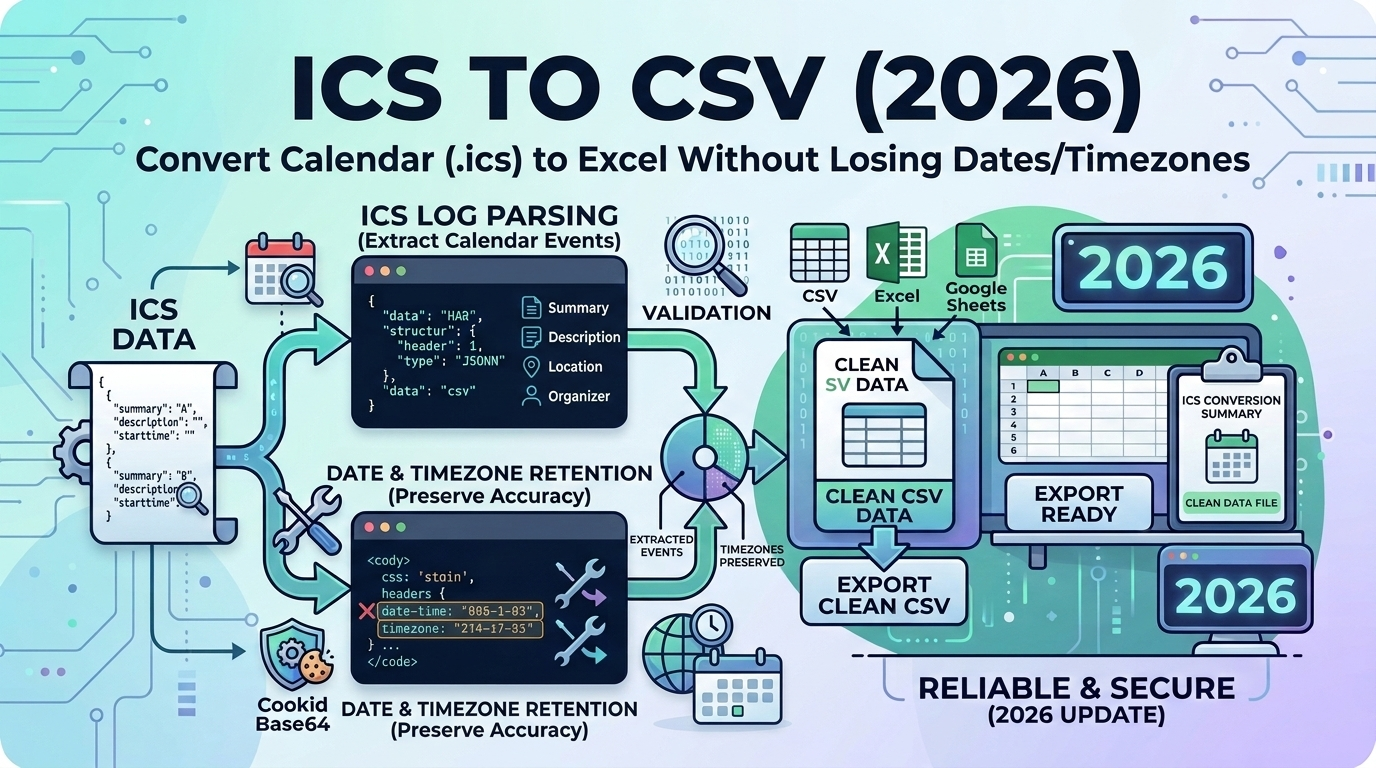
ICS (iCalendar) is the universal calendar format used by Google Calendar, Outlook, Apple Calendar, and more. Converting ICS to CSV allows you to analyze events in Excel, import to databases, sync with CRM systems, or create custom reports—all while preserving critical date, timezone, and recurrence data.
What is an ICS File?
ICS (iCalendar format) stores calendar events in a standardized text format. Each ICS file contains:
- Event details: Title, description, location
- Date/time: Start, end, timezone
- Recurrence rules: Repeat patterns (daily, weekly, etc.)
- Attendees: Email addresses and RSVP status
- Reminders: Alarm settings
Created by: Google Calendar, Outlook, Apple Calendar, Thunderbird, CalDAV servers
Common use cases for ICS to CSV:
- Analyzing meeting patterns in Excel
- Importing events to Salesforce, HubSpot, or other CRMs
- Creating custom calendar reports
- Backup and archival
- Migrating calendars between systems
How to Export ICS from Popular Calendars
Google Calendar
- Open Google Calendar
- Click ⚙️ Settings → Import & Export
- Click "Export" (downloads a ZIP with all calendars)
- Extract the ZIP → each calendar is a separate
.icsfile
Outlook (Desktop)
- Go to File → Open & Export → Import/Export
- Select "Export to a file" → Next
- Choose "iCalendar Format (.ics)"
- Select calendar → Save
Apple Calendar (macOS)
- Open Calendar app
- Select calendar in sidebar
- File → Export → Export
- Save as
.icsfile
Outlook.com (Web)
- Go to Calendar
- Right sidebar → Add calendar → Subscribe from web
- Get the ICS URL (or export individual events via More → Share → Email ICS)
ICS File Structure (What You're Converting)
Here's what a typical ICS event looks like:
BEGIN:VCALENDAR
VERSION:2.0
PRODID:-//Google Inc//Google Calendar 70.9054//EN
BEGIN:VEVENT
DTSTART;TZID=America/New_York:20260315T140000
DTEND;TZID=America/New_York:20260315T150000
RRULE:FREQ=WEEKLY;BYDAY=TU,TH
SUMMARY:Team Standup
LOCATION:Zoom Meeting Room
DESCRIPTION:Weekly sync with engineering team
ORGANIZER;CN=John Doe:mailto:john@example.com
ATTENDEE;CN=Jane Smith:mailto:jane@example.com
STATUS:CONFIRMED
UID:abc123@google.com
END:VEVENT
END:VCALENDAR
Key fields to extract:
SUMMARY |
Event title |
DTSTART |
Start date/time with timezone |
DTEND |
End date/time |
LOCATION |
Where the event happens |
DESCRIPTION |
Event notes |
RRULE |
Recurrence pattern |
ORGANIZER |
Who created the event |
ATTENDEE |
Invited participants |
Critical Challenge: Timezone Handling
The #1 issue with ICS to CSV conversion is timezone preservation. ICS stores times in three ways:
1. Local Time with Timezone (Recommended)
DTSTART;TZID=America/New_York:20260315T140000
→ Converts to: 2026-03-15 14:00:00 EDT
2. UTC Time (Z suffix)
DTSTART:20260315T180000Z
→ Converts to: 2026-03-15 18:00:00 UTC
3. Floating Time (No timezone)
DTSTART:20260315T140000
→ Converts to: 2026-03-15 14:00:00 (local time)
Best practice for CSV output: Convert all times to a single timezone (e.g., your local timezone or UTC) and include a timezone column.
Handling Recurring Events
ICS uses RRULE (Recurrence Rule) for repeating events. Common patterns:
| RRULE | Meaning | CSV Behavior |
|---|---|---|
FREQ=DAILY |
Every day | Expand to individual rows (configurable) |
FREQ=WEEKLY;BYDAY=MO,WE,FR |
Mon, Wed, Fri | One row per occurrence |
FREQ=MONTHLY;BYMONTHDAY=15 |
15th of each month | Expand for date range |
FREQ=YEARLY;COUNT=5 |
Yearly, 5 times | Generate 5 rows |
CSV export options:
- Single row: Keep the RRULE as text (compact, but not analysis-friendly)
- Expanded rows: Generate individual entries for each occurrence (best for analysis)
Our ICS to CSV Converter lets you choose the expansion range (e.g., "expand next 365 days").
CSV Output Format
A well-structured ICS to CSV conversion looks like this:
| Subject | Start Date | End Date | All Day | Location | Description |
|---|---|---|---|---|---|
| Team Standup | 2026-03-15 14:00 | 2026-03-15 15:00 | FALSE | Zoom | Weekly sync |
| Team Standup | 2026-03-17 14:00 | 2026-03-17 15:00 | FALSE | Zoom | Weekly sync |
Additional columns (optional):
- Timezone: EDT, UTC, PST, etc.
- Organizer: Event creator email
- Attendees: Comma-separated list
- Status: CONFIRMED, TENTATIVE, CANCELLED
- UID: Unique event identifier
Common Conversion Issues & Fixes
Issue 1: All-Day Events Show Wrong Dates
Cause: All-day events use DATE format (no time), which can confuse parsers.
DTSTART;VALUE=DATE:20260315
DTEND;VALUE=DATE:20260316  ← Note: end date is exclusive!
✅ Fix: Set time to 00:00:00 and mark All Day = TRUE. Subtract 1 day from DTEND.
Issue 2: Line Breaks in Descriptions
ICS uses \n for line breaks within fields:
DESCRIPTION:Agenda:\n1. Review\n2. Plan\n3. Q&A✅ Fix: Convert \n to real line breaks, then wrap CSV value in quotes.
Issue 3: Special Characters Break CSV
ICS escapes characters differently than CSV:
- ICS comma:
\, - ICS semicolon:
\; - CSV requires quoting:
"Location with, comma"
✅ Fix: Properly unescape ICS values, then apply CSV quoting rules.
Excel/Sheets Analysis Use Cases
1. Meeting Time Analysis
Goal: How many hours per week in meetings?
// In Excel/Sheets
Duration = (End Date - Start Date) * 24  // Hours
Total = SUM(Duration column)             // Weekly total
2. Calendar Heatmap
Create a pivot table:
- Rows: Hour of day (0-23)
- Columns: Day of week
- Values: Count of events
Result: See when your calendar is busiest.
3. Location-Based Grouping
Filter by location to find:
- All Zoom meetings
- All office meetings
- All events at specific location
CRM Import: Salesforce, HubSpot, etc.
Many CRMs allow importing calendar events as tasks or activities:
Required CSV Columns for Salesforce
- Subject: Event title
- ActivityDate: Start date (YYYY-MM-DD)
- Description: Notes
- WhoId or WhatId: Related contact/account (must exist)
Tips for Successful Import
- Match date format: CRM requires specific format (e.g., YYYY-MM-DD)
- Map organizer email: Use VLOOKUP to convert email → CRM user ID
- Split date/time: Some CRMs require separate columns
- Test with small batch: Import 10 events first, verify, then do full import
FAQ: ICS to CSV Conversion
Can I convert recurring events without expansion?
Yes. The RRULE can be stored as a text column. However, analysis is easier with expanded rows (each occurrence as a separate event).
How do I handle timezones when importing to Excel?
Best practice: Convert all times to UTC and add a separate "Timezone" column. Excel doesn't store timezone metadata, so document it separately.
My ICS has thousands of events—what's the best approach?
Use a script (Python, Node.js) instead of online tools. Scripts can handle large files, filter specific date ranges, and customize output format.
Can I convert CSV back to ICS?
Yes! Use our CSV to ICS Converter. Ensure your CSV has required columns: Title, Start Date, End Date (at minimum).
Related Articles
- HAR to CSV (2026): Export Network Logs to Excel - Convert browser network data to spreadsheets
- VCF to CSV for Gmail (2026): Import Contact Data - Convert contact files like calendar events
- SQL to JSON (2026): Database to API Format - Transform structured data for modern applications
Why do some events show "BUSY" or "FREE"?
That's the TRANSP field (transparency). OPAQUE = busy, TRANSPARENT = free time. Add as a CSV column if you need to preserve this.
Related Converters
- CSV to ICS — Convert spreadsheets back to calendar format
- VCF to CSV — Convert contacts instead of events
- JSON to CSV — Other structured data
Conclusion
Converting ICS to CSV unlocks powerful calendar analysis in Excel, enables CRM integration, and simplifies event data backup. The key challenges—timezone preservation, recurring event expansion, and special character handling—are all solvable with the right tools and understanding. Use our ICS to CSV Converter for instant conversion with proper timezone handling, configurable recurrence expansion, and CRM-ready output formats. Whether analyzing meeting patterns, migrating calendars, or importing events to business systems, ICS to CSV conversion is an essential workflow for productivity and data integration.